 The Boring Project
How to Auto Apply on Workable Applications
Workable is a mid-market ATS with a sectioned, account-free application form and an optional LinkedIn import. This guide covers how a Workable ATS apply is laid out, why automation ignores the import button, how screening questions and consent are handled, and where an automated run has to pause.
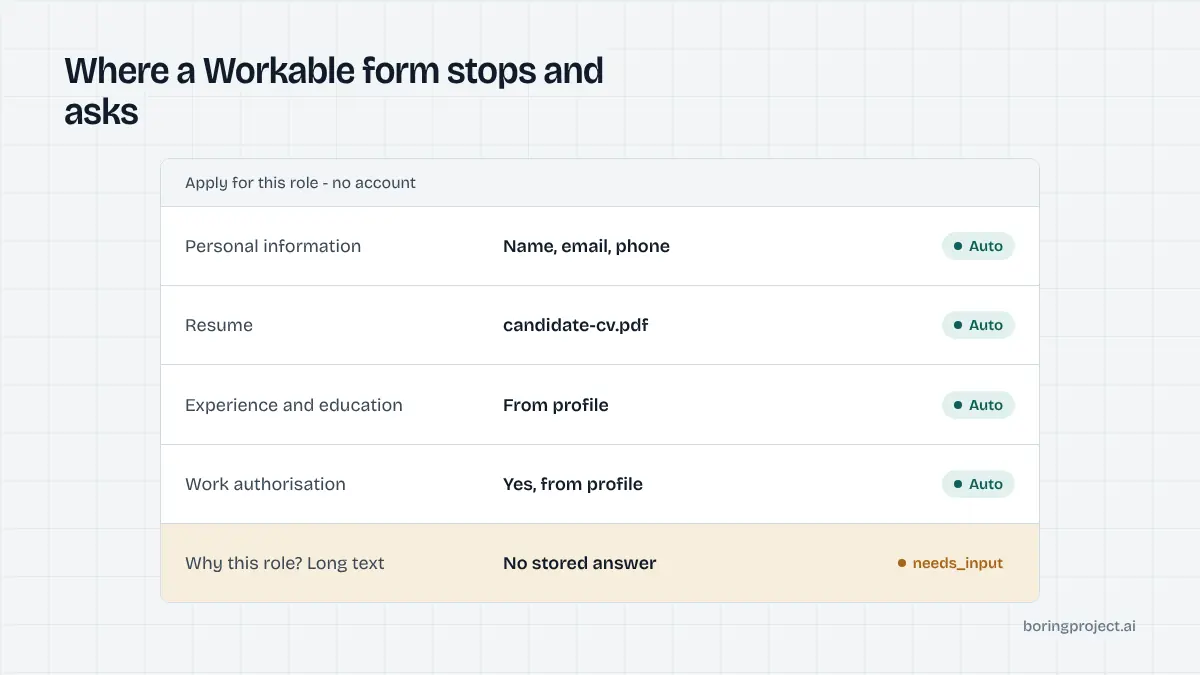
The Workable form in four sections
Workable hosts application forms at apply.workable.com/<company>/j/<id>/apply and embeds the same form on company careers pages built with Workable. Knowing how to auto apply on Workable is mostly knowing the four sections and which parts of the candidate profile feed each.
Personal information
Name, email, phone and, on many forms, address or location. Some employers add a headline or a photo field. These are the fields a structured candidate profile fills without any interpretation. Employers can set each field to required, optional or hidden, so one company's form may ask for a full address while another asks only for a city.
A photo field, where present, is optional and is left empty unless the candidate has chosen to include one. Headline is filled from the candidate's current title when the profile has it. Neither is worth a pause.
Profile: resume, summary, experience, education
The resume upload is the anchor. Beside it, employers can show a summary box and structured experience and education entries (employer, title, dates; institution, degree, field, dates). When these entries are enabled, they are repeating blocks, each added separately. When they are disabled, the resume alone carries the history.
The engine uploads the resume as a file, then writes any shown entries from the structured profile, one block per role or qualification. It does not re-derive experience from the PDF.
Details and questions
A details section usually holds a cover letter field, either as text or upload, and occasionally additional notes. Below it come the employer's screening questions, which range from a single authorisation check to a dozen prompts. The form ends with any consent checkboxes and a submit button. A cover letter is filled only with text the candidate provided; the engine does not compose one.
LinkedIn import versus profile data
What the Apply with LinkedIn button does
Employers with the appropriate LinkedIn integration can enable an Apply with LinkedIn button on the form. When a candidate clicks it, Workable pre-fills the application with details from their LinkedIn profile. The candidate can edit any pre-filled value, and the employer's custom questions still have to be answered manually.
For a human, the button saves retyping. For an automated run, it introduces a dependency on a third-party login and on the completeness of someone's LinkedIn page, which varies wildly. The engine does not use it. Employers may also have Indeed Apply or similar one-click options switched on; those are channels for candidates arriving from a specific job board, and an apply system working from the posting URL goes straight to the Workable form instead.
Why automation writes from the structured profile
A structured candidate profile has one canonical value for each field: legal name, current phone, current role, education with dates, links. Writing from it produces the same accurate application every time, regardless of what LinkedIn shows. It also allows the engine to validate as it goes, because it knows what each field should contain and can detect when the form rejected a value.
The autofill distinction, in brief
Apply with LinkedIn is a form of autofill: it pre-populates, then leaves the candidate to review, complete and submit. Auto apply fills, answers, validates and submits in a single unattended pass, pausing only when something genuinely needs a person. If the difference is new to you, auto apply vs autofill lays it out with examples.
Screening, consent and submission
How screening questions resolve
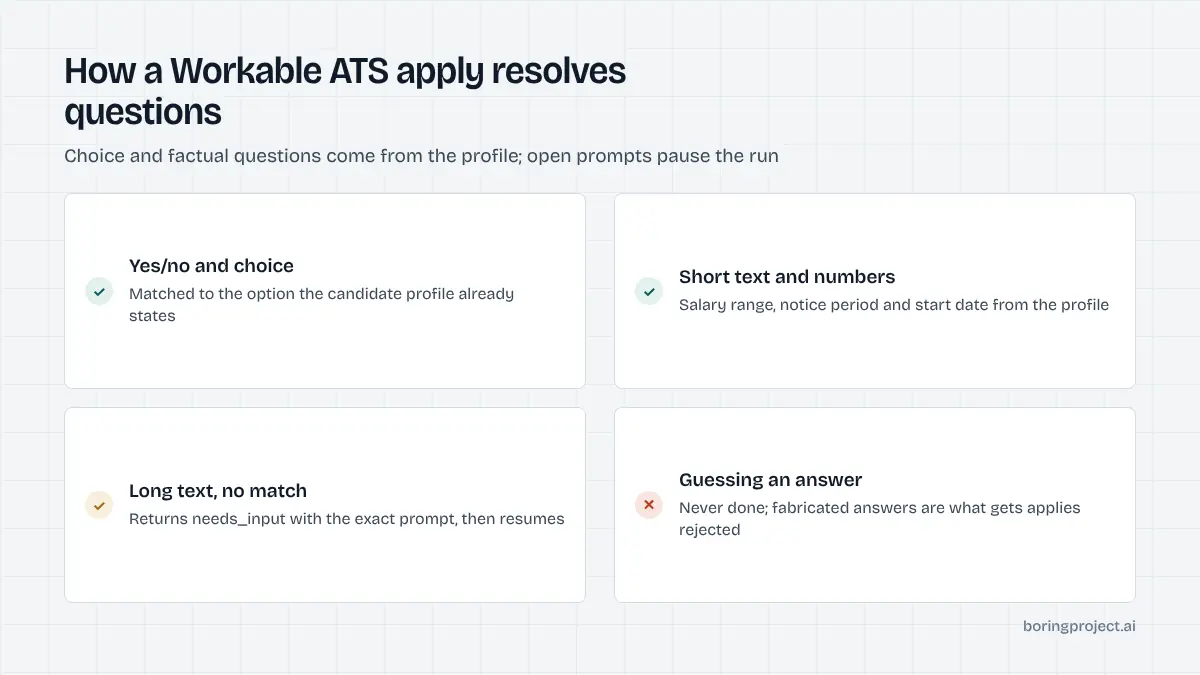
Workable supports yes/no, single and multiple choice, dropdown, short text, long text, numeric, date and file-upload questions. The engine handles them in three ways:
| Question type | Resolution | Example |
|---|---|---|
| Yes/no, choice, dropdown | Match profile value to option text | "Are you authorised to work in the UK?" |
| Short text, numeric, date | Fill from a profile attribute | "Notice period", "Earliest start date" |
| Long text, file | Use stored candidate content, or pause | "Why do you want to join us?" |
A question the profile cannot answer becomes a needs_input event with the exact wording. The candidate or recruiter answers once; the run resumes, and the answer is kept for the same prompt on later forms. The engine never invents experience, credentials or motivation.
Workable also lets employers mark some questions as knockout criteria and filter on answers inside their pipeline. That is one more reason an honest pause beats a confident guess: a fabricated yes passes the filter and wastes an interview slot, while a true answer, even a disqualifying one, keeps the candidate's record clean with that employer.
Consent checkboxes
Many Workable employers, particularly in Europe, add a privacy or data-processing consent checkbox, and some add a second for retaining the application for future roles. The engine ticks only the consents the candidate has granted for that employer and leaves optional ones unticked otherwise. A required consent with no recorded authorisation pauses the run. Consent is also recorded on our side per application, so there is a timestamped answer to "did this candidate agree to this submission?" if anyone asks.
Submit, confirm, keep good habits
After validation the submit button is clicked, Workable shows a confirmation and typically emails the candidate, and the engine captures a screenshot as the receipt before reporting submitted. Because the form is account-free and fast, the same guardrails apply as on comparable one-page systems like SmartRecruiters: deduplicate candidate plus posting, respect per-employer rate limits, record consent per application. Workable customers are often small and mid-sized teams who see every application that arrives, so volume should look like a considered candidate, not a flood.
Frequently asked questions
Does Workable require an account to apply?
No. Workable application forms, hosted at apply.workable.com and embedded on company careers pages, accept submissions without registration. The candidate completes one form and submits. There is no candidate login afterwards, so the confirmation email and any receipt from the apply system are the candidate's record of what was sent.
What does Apply with LinkedIn do on a Workable form?
When the employer has enabled it, a button appears on the form that pulls details from the candidate's LinkedIn profile into the application fields. The candidate can change any pre-filled value, and any custom questions the employer added still have to be completed by hand. Automation skips the button and writes fields from the candidate's structured profile.
Which sections does a Workable application form have?
Typically personal information (name, email, phone, address), a profile section (resume upload, summary, experience and education), a details section (cover letter or additional notes) and the employer's questions. Employers control which fields are shown and which are required, so some forms are a handful of fields while others ask for full history and several screening questions.
What kinds of screening questions appear on Workable?
Yes/no questions, single and multiple choice, short text, long text, numeric, date, dropdown and file upload. Employers commonly ask about work authorisation, location or relocation, salary expectations, notice period and specific skills. Automation resolves choice and factual questions from the profile and pauses on open prompts it cannot answer from stored content.
Where does a workable ats apply pause for input when automated?
On a required long-text question with no stored answer, on a choice question where no option matches the candidate's data, on a privacy or data-processing consent that the candidate has not pre-authorised for that employer, and occasionally on a CAPTCHA. Each pause returns needs_input with the exact prompt; answering once lets the same run resume.
Can I use the same answers across many Workable employers?
Yes, for factual questions. Authorisation, relocation, salary range, notice period and start date are stored once on the candidate profile and applied wherever the same question appears. Open-ended prompts specific to one employer are answered by the candidate when first encountered and stored for reuse if the same wording appears again.
Next step
If you run a staffing desk or career service and Workable employers are a regular destination, Managed Applies takes a CSV of candidates and job URLs and returns receipts with screenshots, no integration required. Talk to us about managed applies to run a sample batch; pricing is per successful application.