 The Boring Project
How to Auto Apply on iCIMS Job Applications
iCIMS career portals sit between the one-page startup systems and the heavyweight enterprise suites: an account gate, a multi-page profile and more dropdowns than any other mainstream ATS. This guide covers how iCIMS application automation navigates each step and where it has to ask a human.
What makes an iCIMS portal different
Large employers in healthcare, retail, logistics and manufacturing run iCIMS. The portals live on employer-branded subdomains such as careers-company.icims.com, and the employer configures the pages, so no two portals are identical. Still, the skeleton is consistent, and knowing how to auto apply on iCIMS means knowing that skeleton.
The email gate decides your path
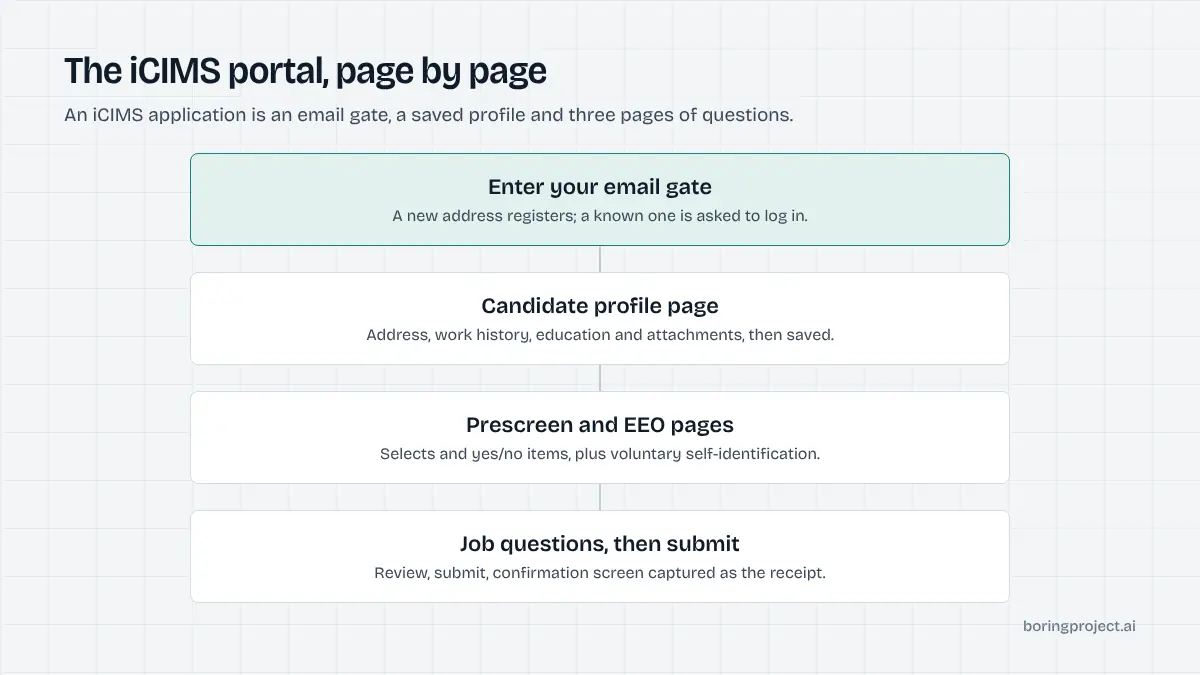
Clicking "Apply for this job online" opens an "Enter your email" page before any form. iCIMS checks the address against the portal's existing profiles. A new address is routed to account creation; a known address is asked to log in. This single step determines whether the run will register, authenticate or get stuck.
New applicants enter their name and email, set a login and password, or seed the profile from a social account (Google, LinkedIn, Microsoft or Facebook, depending on the portal) or a resume upload. The portal may also accept the resume from Google Drive, Dropbox or OneDrive.
Profiles are per employer
An iCIMS profile belongs to the employer's portal, not to a global iCIMS identity. Applying to three different iCIMS employers means three separate profiles, each with its own password. Returning candidates log back in and the portal attaches the existing profile to the new application, which is faster, so credentials are worth keeping.
The pages after the gate
Once inside, the application runs as a sequence. A typical portal shows:
- Candidate profile page: name, address, phone, work history, education, attachments, saved with "Update profile".
- Screening or prescreen questions set by the employer.
- EEO or voluntary self-identification page.
- Job-specific questions tied to this requisition.
- Review and submit, followed by a confirmation page that may offer job-alert subscriptions.
Employers rename, merge or drop pages, and iCIMS allows "Finish later" at many steps so a partial application is saved to the dashboard. Required fields are marked with an asterisk, and the portal will not advance past a page until every one of them is filled.
The dashboard itself is worth knowing about. After logging in, candidates can update their profile and screening answers, view past job submittals, continue a saved application or withdraw one. Automation reads the same dashboard to confirm what was already sent to this employer before opening a new application.
What the automated run does at each step
Account handling and the returning-candidate case
The engine submits the candidate's email at the gate. For a new address it registers with a generated password meeting the portal's rules and stores the credentials against the candidate and portal. For a returning address with stored credentials it logs in. For a returning address with no stored credentials, which happens when the candidate applied manually in the past, the run needs a password reset through the candidate's inbox; without consented access to that inbox, it stops with needs_input rather than guessing.
This is the same tenant-per-employer pattern that makes Workday slow, covered in how to auto apply on Workday. iCIMS is lighter, but the account step still adds time.
Filling the profile page
The resume is uploaded first so the parser pre-fills what it can. Then every field is overwritten from the structured candidate profile: address split into street, city, state, postal code and country; work history as repeating blocks with employer, title, dates and description; education with institution, degree and field.
Attachments beyond the resume, such as a cover letter or licence, are added where the portal exposes an attachments section. The profile is saved before moving on, because iCIMS validates the page at that moment and surfaces missing required fields inline.
Screening, EEO and job questions
Prescreen questions on iCIMS are mostly select and yes/no: minimum age, authorisation to work, licensure, shift availability, willingness to travel, background-check acknowledgement. These resolve from a complete profile. Free-text questions are answered only when the profile contains the fact; otherwise the run pauses with the question text.
The EEO page is filled only with the candidate's explicit choices, including "decline to self-identify". Job-specific questions are handled like prescreens. After the final page, the engine confirms the confirmation screen rendered, captures it as a screenshot receipt and reports submitted.
Dealing with dropdown-heavy forms
Match options, do not type values
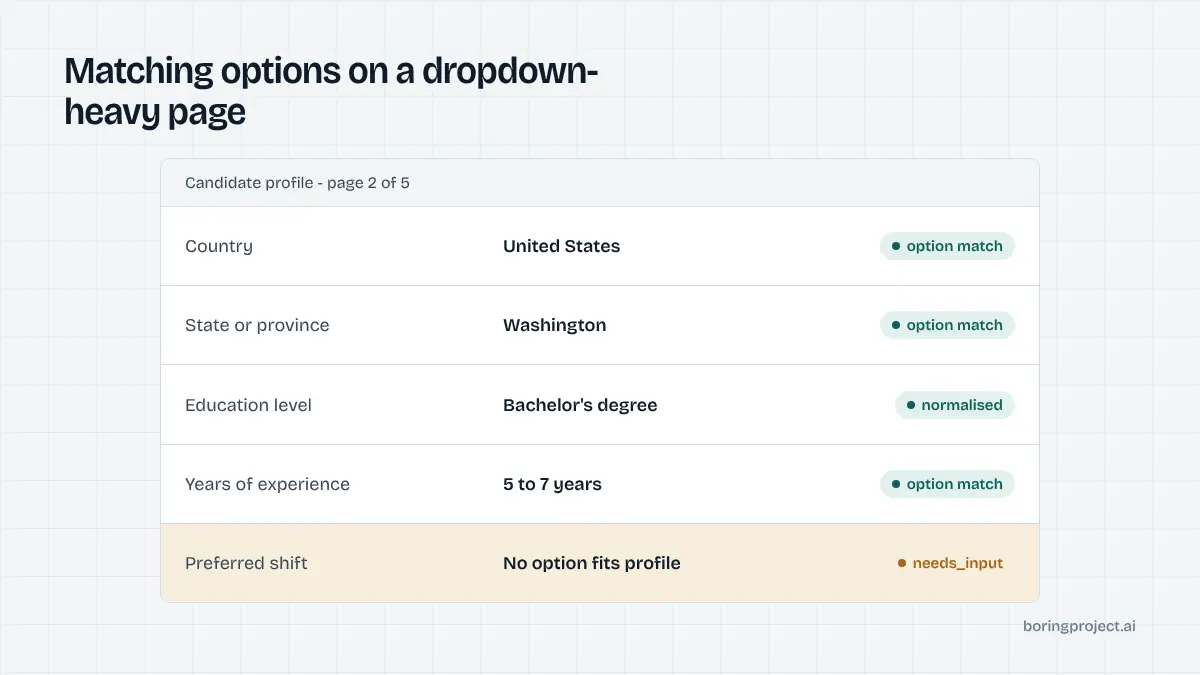
iCIMS portals lean on select fields: country, state or province, education level, years of experience, how you heard about us, preferred location, shift. Each has an employer-defined option list, and the lists differ between portals: one employer offers "Some college", another "Associate degree", a third collapses everything below a bachelor's into one entry. The engine normalises the candidate's value (for example "B.Sc." to "Bachelor's degree") and picks the option whose text matches. When no option is a defensible match, it pauses rather than picking the first entry. A wrong dropdown is a silent data error that can disqualify a candidate without anyone noticing.
Plan for pauses and resumes
Because iCIMS supports saving in progress, a needs_input pause is cheap: the partial application sits on the portal, the answer is collected from the candidate or recruiter, and the resumed run logs in and continues. Keep a record of each run's status, question and answer so the same question does not stall the next portal. The pattern for doing that with webhook receipts is in job application tracking with automation.
Volume etiquette
Employers see every application from a portal in one place. Spread submissions over time, keep to per-employer rate limits, and confirm candidate consent per application. Large iCIMS customers in healthcare and retail post dozens of similar roles; submitting the same candidate to every one of them in minutes is noticeable and counterproductive. Prioritise fit and let the receipts show what was sent.
Frequently asked questions
Does iCIMS make me create an account before applying?
Yes, in practice. After clicking the apply button, iCIMS asks for an email address and checks whether it belongs to an existing profile on that portal. New applicants create a login and password, or build a profile through a social sign-in or resume upload, before continuing. Accounts belong to the employer's portal, not to iCIMS globally.
Can I reuse my iCIMS login across different companies?
No. Each employer runs its own iCIMS career portal, typically on a subdomain like careers-company.icims.com, and profiles live inside that portal. The same email can be registered on many portals independently. Automation stores credentials per candidate per portal, so a second application to the same employer logs in instead of re-registering.
Where does iCIMS application automation typically pause for input?
The main pauses are an email verification or password-reset loop when a returning email is detected without stored credentials, required screening questions that the profile cannot answer, and dropdowns whose options do not match any value on file. Each pause is returned as needs_input with the specific prompt so it can be answered once and the run resumed.
What does "Finish Later" mean for an automated run?
iCIMS lets candidates save a partially completed application and resume it from the dashboard. An automation engine uses the same mechanism: when it pauses for input, the partial application is preserved on the portal, and the resumed run logs back in and continues from the saved step rather than starting a new submission.
How does automation handle the long dropdown lists on iCIMS forms?
By matching structured profile values to the option text rather than typing free text. Country, state, education level, years of experience and source fields are all selects with employer-defined options. The engine normalises the candidate's value, picks the closest valid option, and pauses if nothing matches instead of choosing arbitrarily.
Is resume parsing good enough to fill the iCIMS profile page?
iCIMS recommends uploading the resume first precisely because its parser pre-fills profile fields. The parse is a useful start but not dependable for dates, titles and addresses. Automation uploads the file, lets the parser run, and then overwrites each field with the structured profile so the submitted data is accurate regardless of parse quality.
Next step
If your candidates are headed for healthcare, retail or logistics employers, iCIMS volume is unavoidable. Managed Applies takes a CSV of candidates and job URLs, handles the portals and accounts, and returns receipts with screenshots. Talk to us about managed applies and we will run a sample batch on your real postings; pricing is per successful application.